
How to generate and download manual backups of your website in cPanel
While CeylonServers maintains automated system backup snapshots for disaster recovery, keeping your own manual backups locally on your computer is a vital industry best practice. Before making any structural changes to your code, updating your themes, or migrating data, you should always export a fresh copy of your environment.
cPanel provides two intuitive pathways to accomplish this: a Full Backup (wipes and archives everything into one package) and Partial Backups (isolates files or databases separately).
Follow this step-by-step walkthrough to secure your website resources manually:
Method 1: Generating a Full cPanel Backup (Complete Archive)
A Full Backup generates an archive file containing all of your website configuration fields, home directory files, MySQL databases, email accounts, and forwarder settings.
Important Note: A full backup file archive is strictly used to download a hard copy or migrate your account to another server. You cannot restore a "Full Backup" archive directly via the standard user interface; it requires server administrator restoration access permissions.
- Log in to your CeylonServers cPanel account dashboard.
- Under the Files section layout cluster, click on the "Backup Wizard" icon.
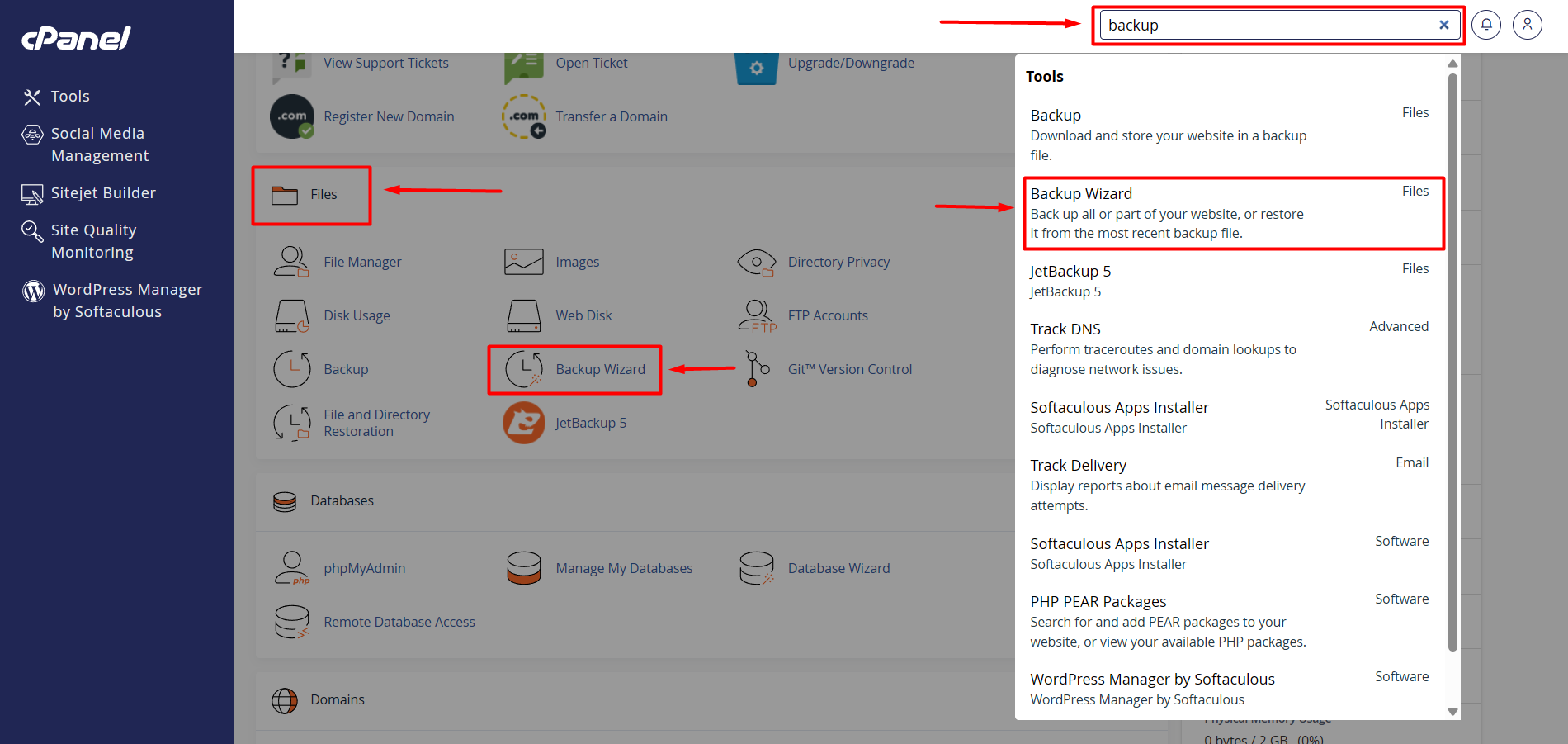
- Under the Step 1: Back Up or Restore prompt on the screen, click the blue "Back Up" button.
- Inside Step 2, click the "Full Backup" button on the left.
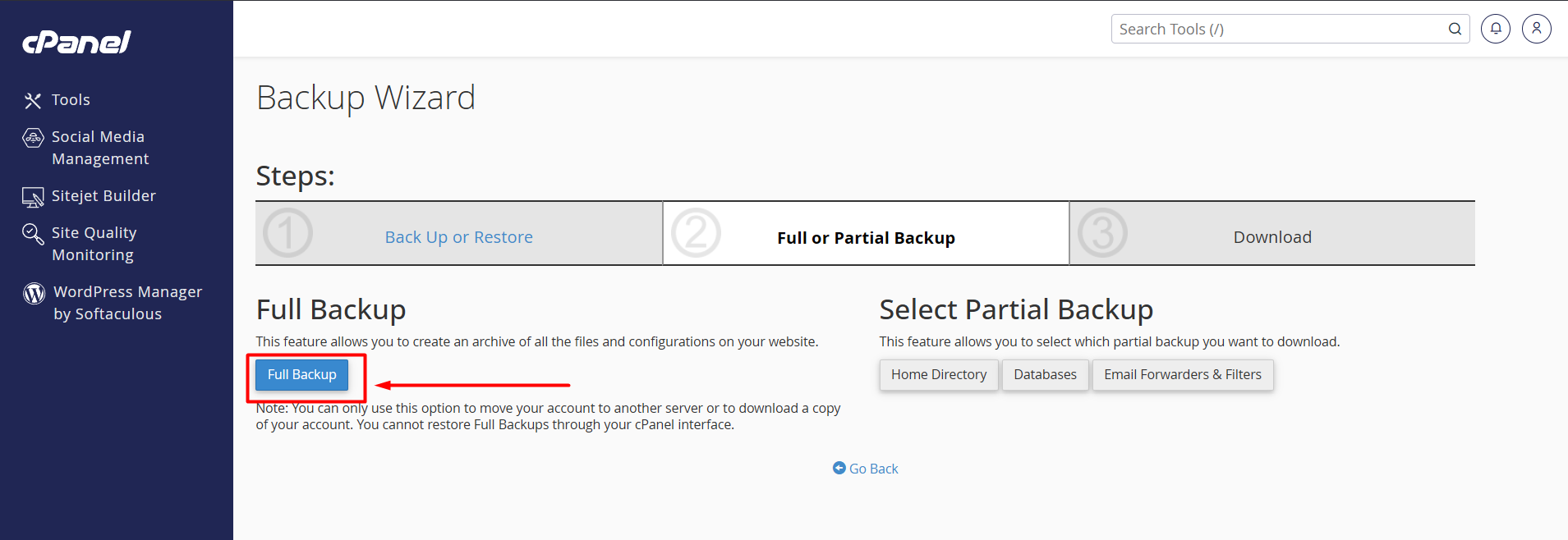
- Configure your Backup Destination variables:
- Backup Destination: Leave this set to "Home Directory" (This instructs cPanel to compress the files into your root file manager layer).
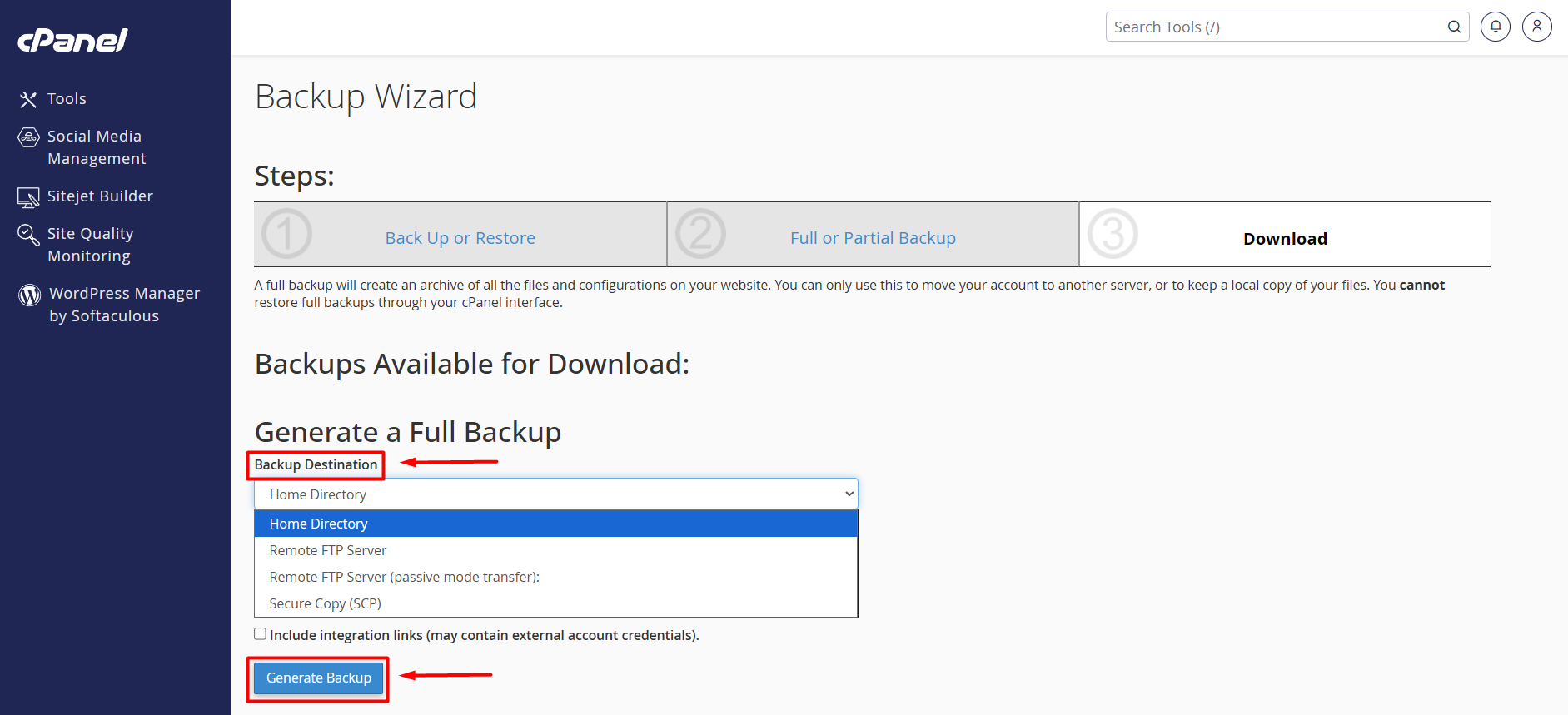
- Email Address: Enter your active personal email address if you wish to receive an automated confirmation notification when the packaging loop finishes. (If you don't want an email, select the Do not send email notification radio button).
- Click the blue "Generate Backup" button.
The server will now start compressing your complete hosting structure in the background. Once finished, navigate to the "Backups Available for Download" listing on that same screen, and click the blue link name (e.g.: backup-6.8.2026_...tar.gz) to download the full package safely onto your local hard drive!
Method 2: Generating Partial Backups (Quick Individual Restores)
If you only want to backup your raw website files or a specific database so that you can easily upload and restore them yourself later via the user interface, select a Partial Backup.
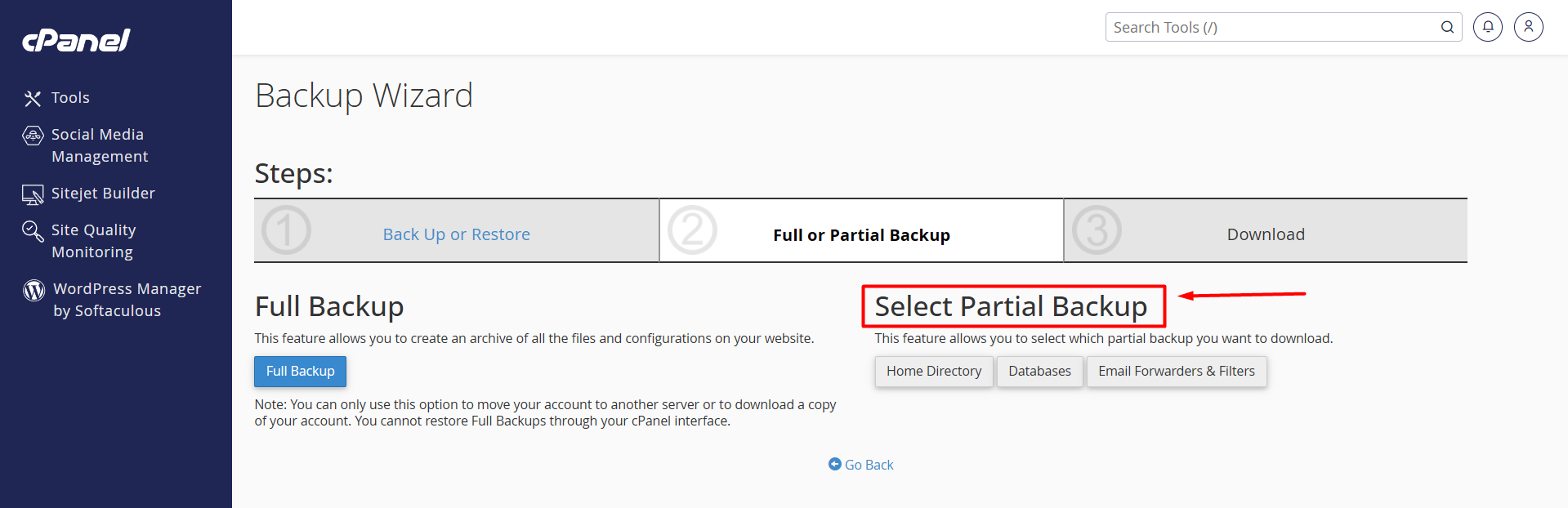
- To Backup Your Website Files (Home Directory):
- Open the Backup Wizard from your main cPanel dashboard.
- Click "Back Up", and under the Select Partial Backup column on the right, click "Home Directory".
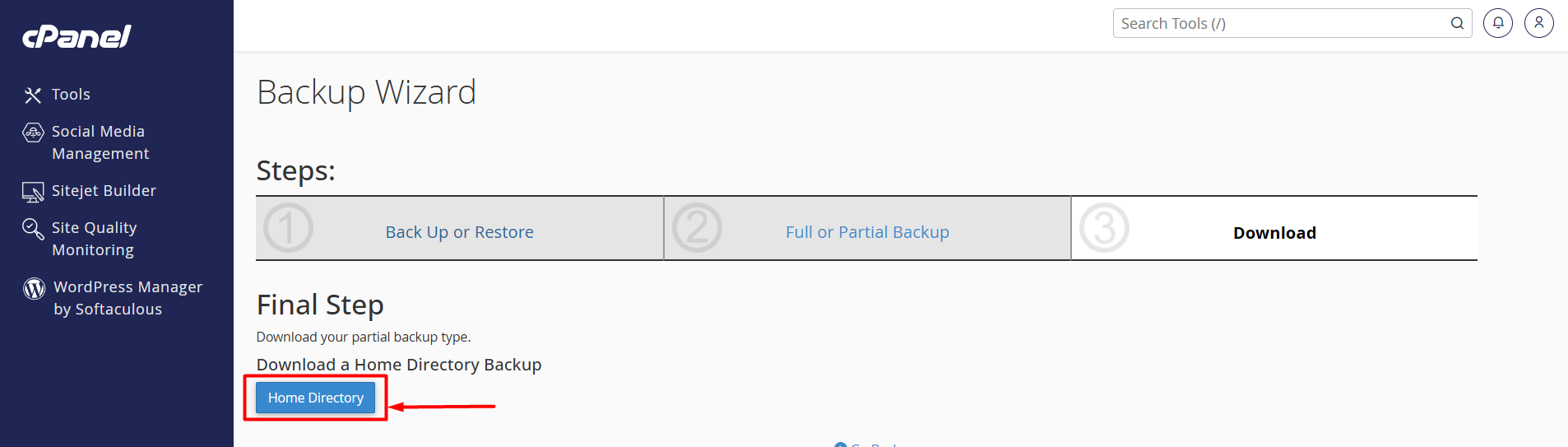
- On the next screen page, click the "Home Directory" download button.
- This will instantly export a compressed
.tar.gzarchive containing all files inside yourpublic_htmldirectory directly to your computer.
To Backup Your Databases (MySQL):
- Inside the Select Partial Backup column row, click on "MySQL Databases".
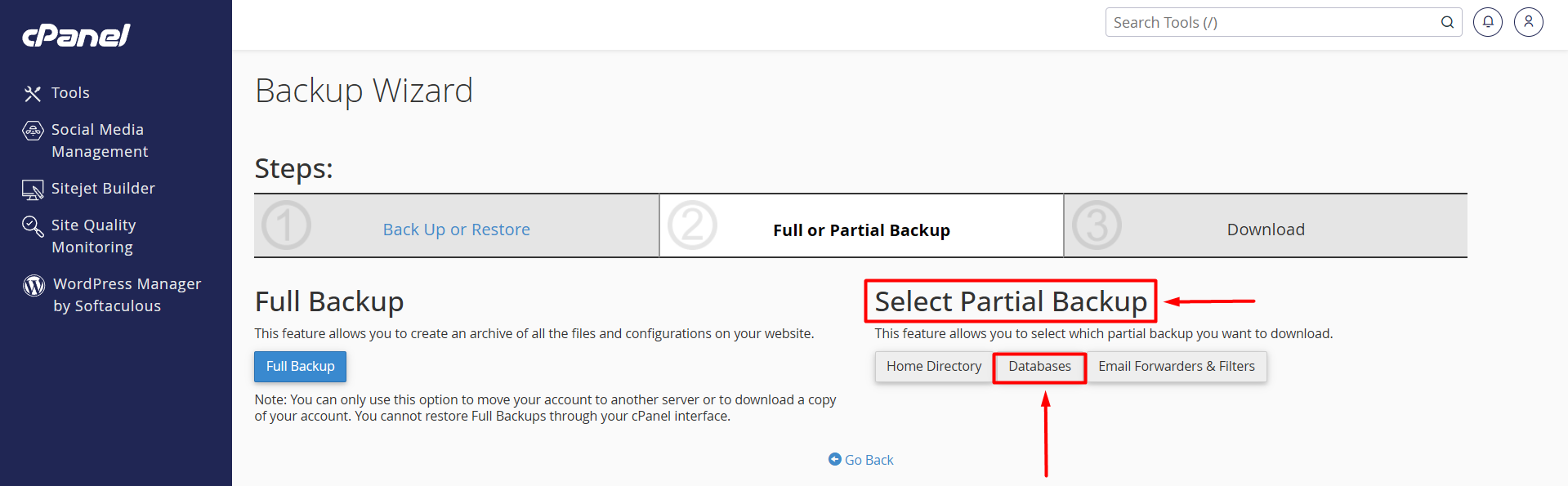
- A table layout will appear showing all databases running on your account.
- Click directly on the Name of the Database you wish to download.
- The server will instantly download a clean
.sql.gzdatabase dump string to your computer.
How to Restore a Partial Backup Manually
If something breaks and you need to deploy your partial files back online:
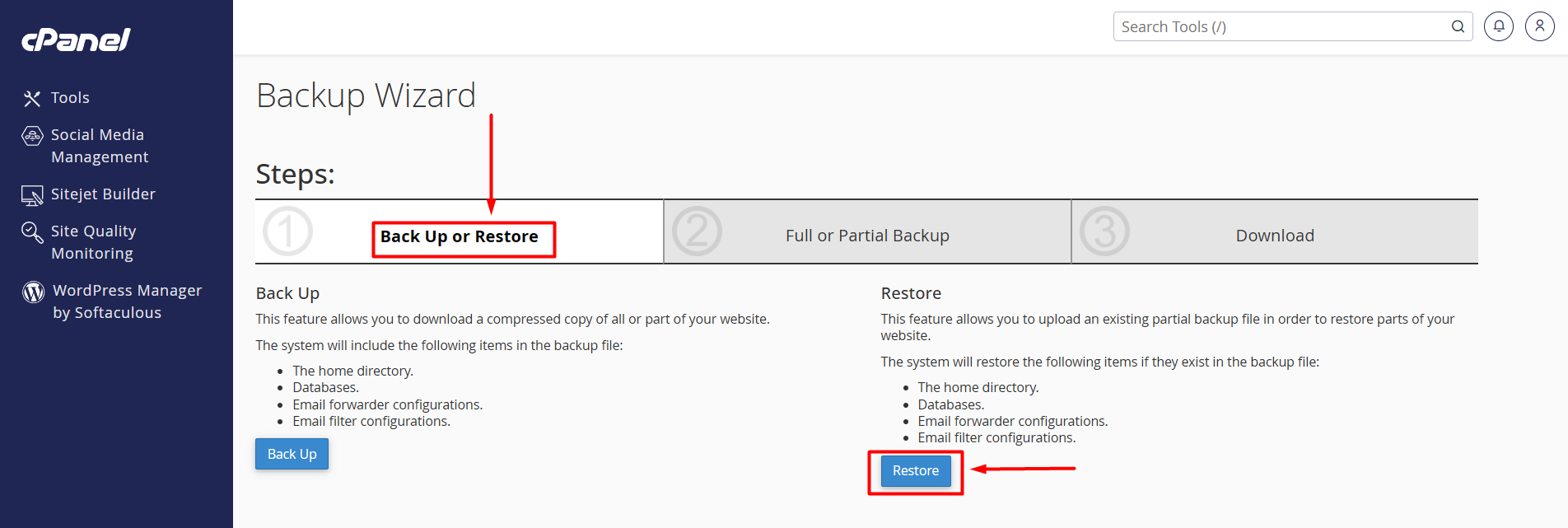
- Open cPanel ➔ Backup Wizard ➔ click the "Restore" button on the main screen page.
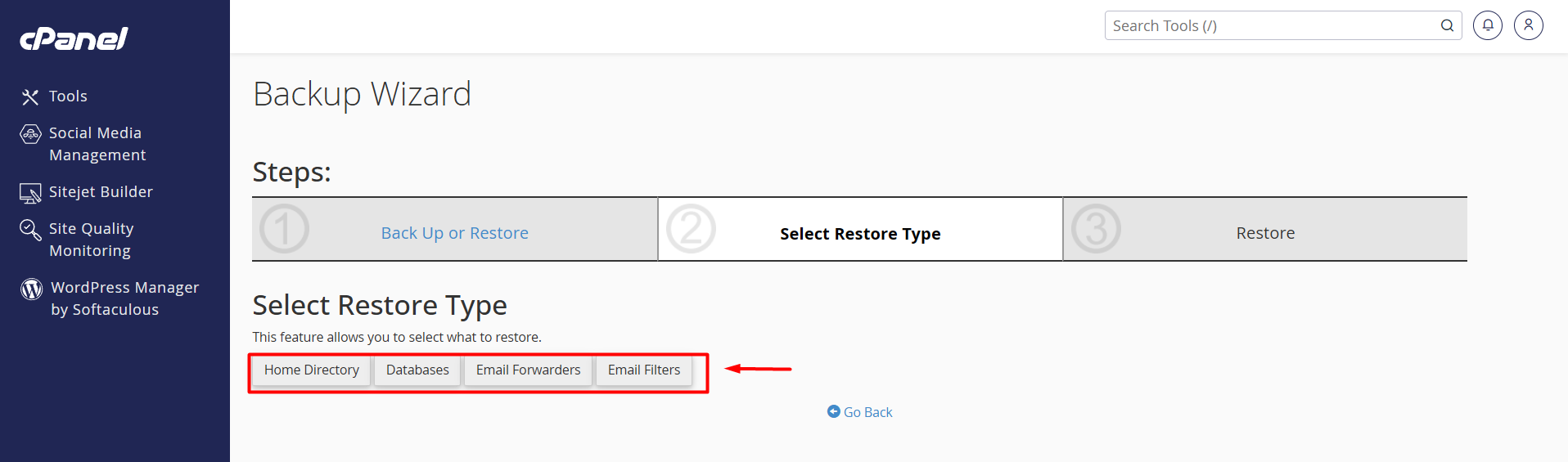
- Select the asset type you wish to fix (Home Directory or MySQL Databases).
- Click Choose File, select the corresponding partial backup archive you saved earlier on your computer, and click "Upload". cPanel will automatically extract the clean files to overwrite the broken directory instantly!
Faced with an Insufficient Disk Allocation Error? Because a Full Backup mirrors all of your existing account text configurations, it requires temporary free space inside your hosting allocation boundaries to build the zipped file. If your account storage usage is already hovering above 75%, the script loop may freeze or fail to complete.
If your execution processes drop a quota notification alert, please Open a Storage Management Ticket inside your CeylonServers client room panel, and our hosting infrastructure desk will assist you in generating an isolated off-site administrative backup archive seamlessly!