
How to point your domain to Ceylon Servers using Nameservers
If you have registered a .COM or any international domain with Ceylon Servers but wish to use it with a different hosting provider, you need to update the nameservers in our portal.
Step 1: Get Nameservers from Your New Host
Before you begin, log in to your other hosting provider's dashboard and find their Nameservers (e.g.: ns1.otherhost.com, ns2.otherhost.com).
Step 2: Log in to Ceylon Servers Portal
- Go to the Ceylon Servers Client Dashboard.
- Enter your login credentials.
Step 3: Navigate to Your Domain
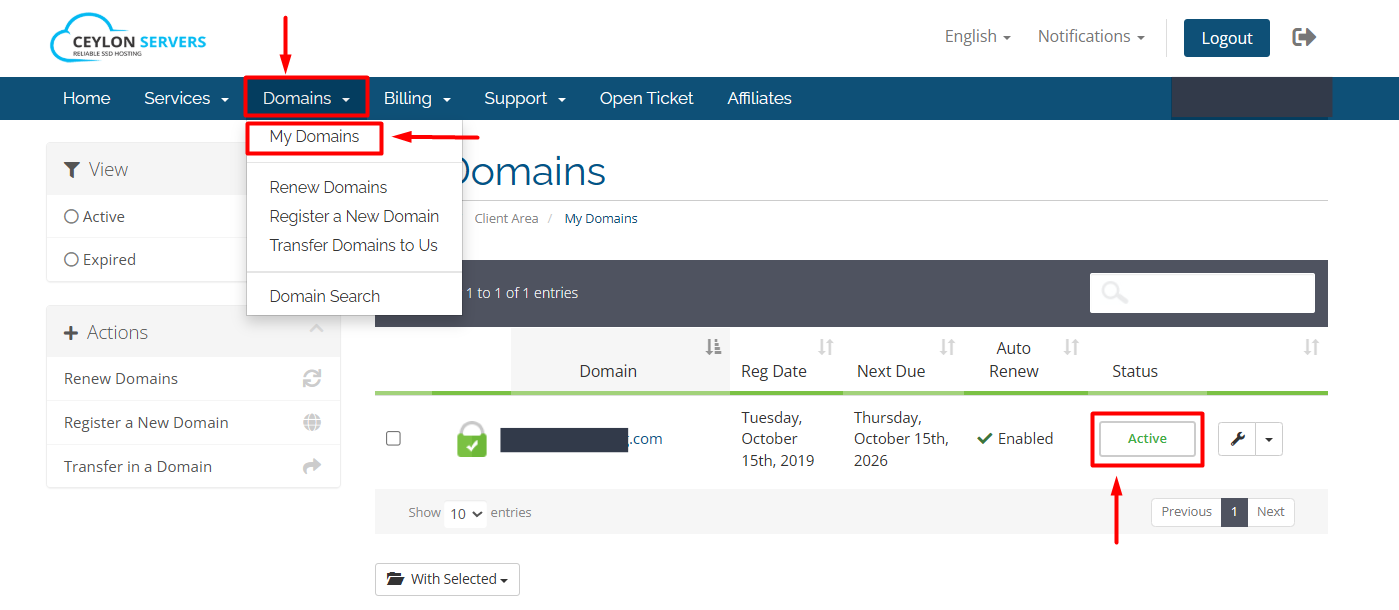
- Click on the "Domains" menu and select "My Domains".
- Find the .COM domain you want to point and click the Wrench Icon or the "Active" button next to it.
Step 4: Update Nameservers
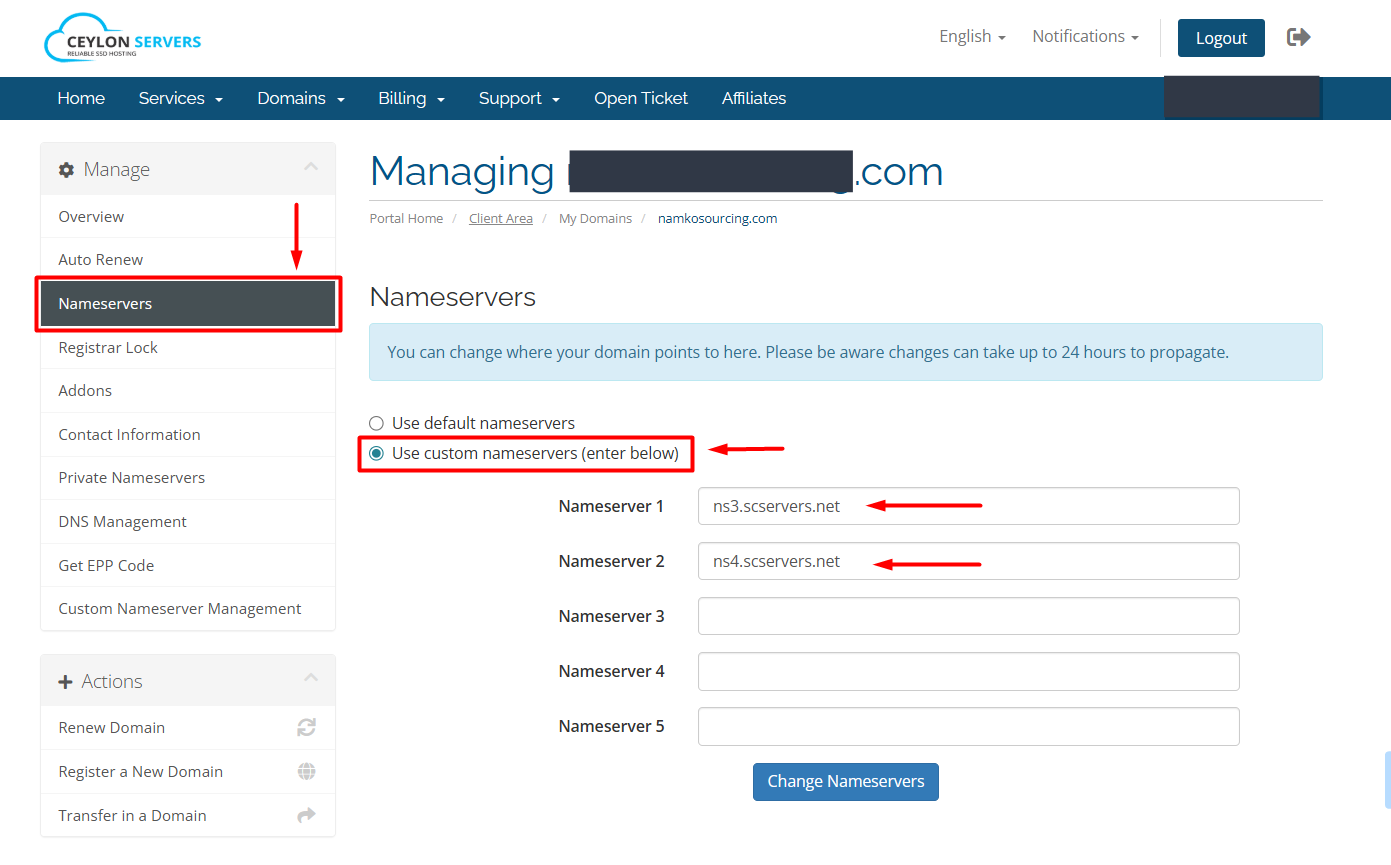
- On the Domain Overview page, scroll down to the bottom or find the "Nameservers" link in the left-hand sidebar.
- Select the option "Use custom nameservers (enter below)".
- Delete the existing CeylonServers nameservers.
- Enter the nameservers provided by your new hosting provider into the fields provided.
- Click the "Change Nameservers" button to save.
Step 5: Propagation Time
Updating nameservers for international domains like .COM is usually fast, but it can take between 2 to 24 hours to update across the entire internet. During this time, your website might not be visible everywhere.
Important Note
By pointing your nameservers to another host, your DNS management and Email services will now be controlled through that hosting provider's control panel (e.g.: their cPanel or Plesk).