
How to login and secure your Ceylon Servers Client Dashboard (Setting up 2FA)
Your Client Dashboard is the central hub for managing your domains, hosting, and billing. To keep your digital assets safe, we highly recommend following these steps to secure your login with Two-Factor Authentication (2FA).
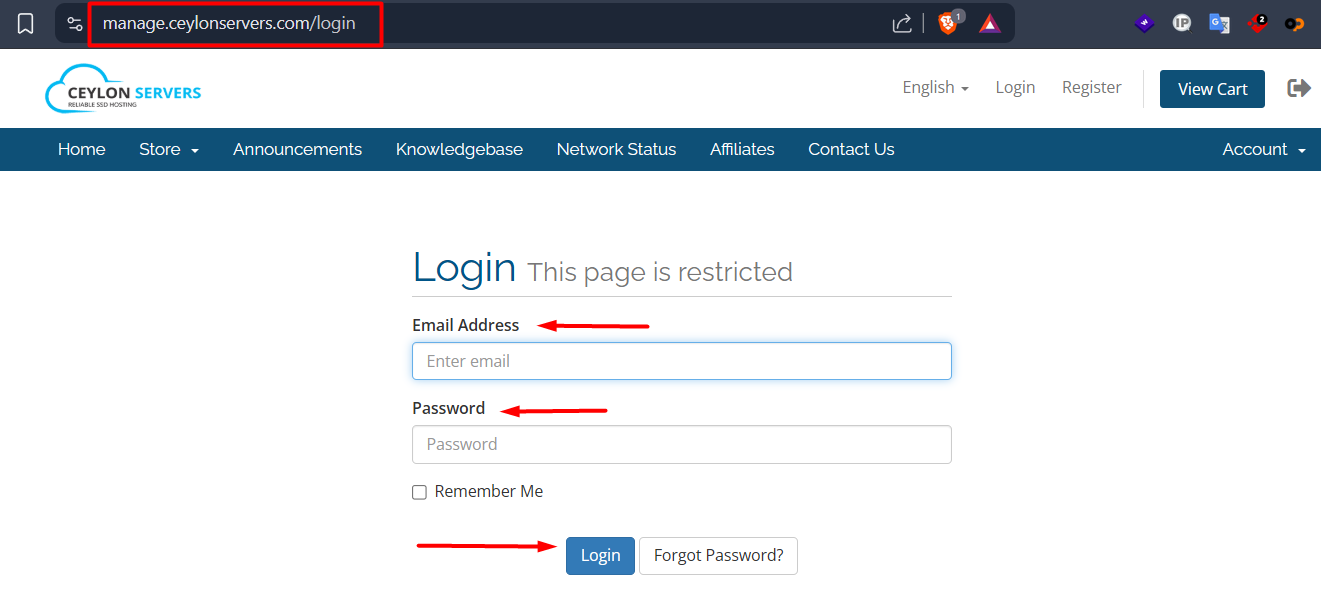
Step 1: Accessing the Login Page
- Visit the official Ceylon Servers Homepage.
- Click on the "Login" button located at the top right corner of the page.
- Enter your registered Email Address and Password.
Note: Why You Should Enable 2FA
Two-Factor Authentication (2FA) adds a second layer of security. Even if someone steals your password, they won't be able to log in without a unique code from your mobile device.
Step 2: How to Set Up 2FA (Step-by-Step)
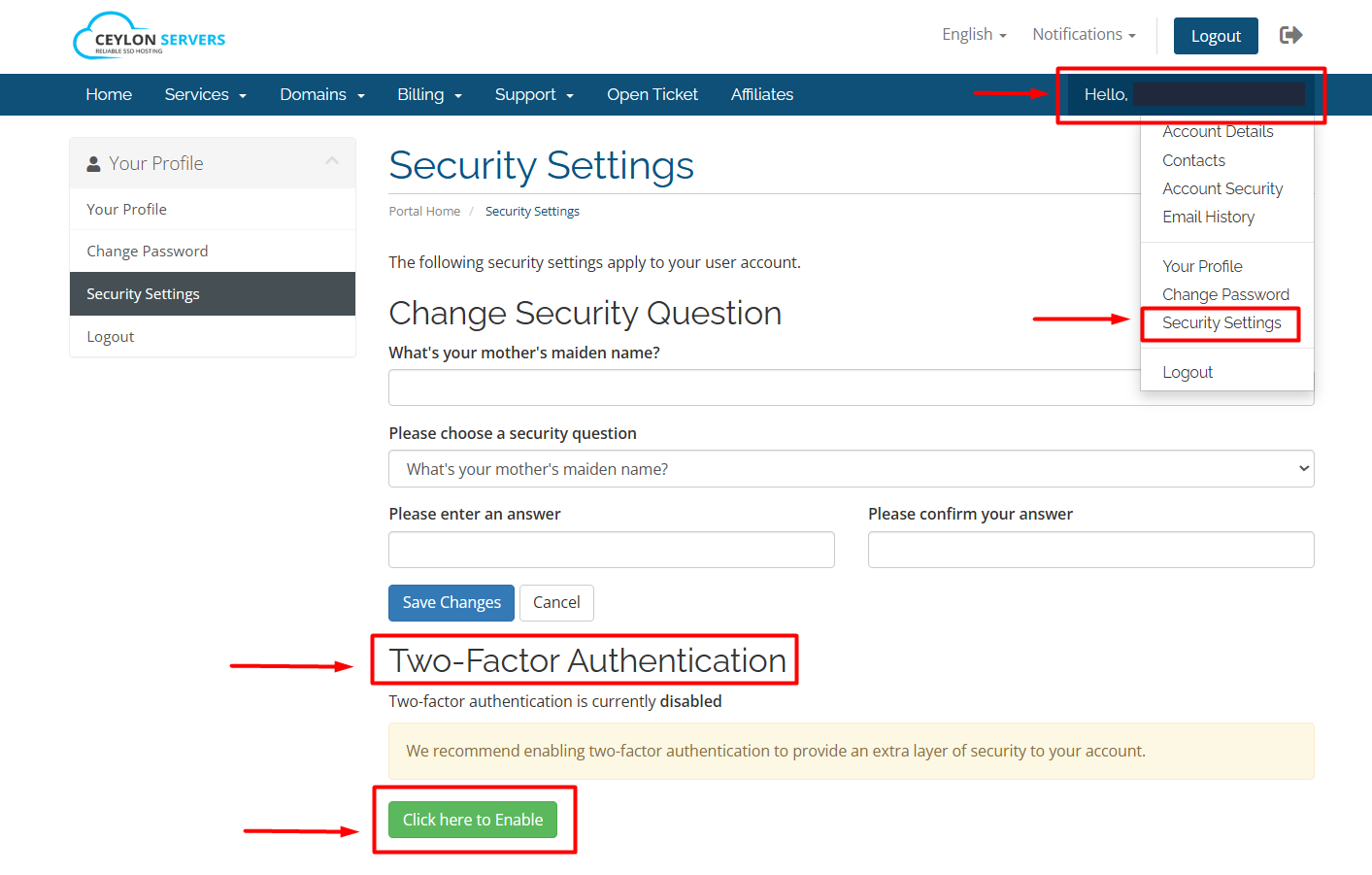
Navigate to Security Settings: Once logged in, click on your Profile Name in the top right corner and select "Security Settings" from the dropdown menu.
- Enable 2FA: Locate the Two-Factor Authentication section and click the "Click here to Enable" button.
- Choose Your Method: We recommend using an app like Google Authenticator or Authy.
- Scan the QR Code: Open your authenticator app on your phone and scan the QR code displayed on your screen.
- Verify the Code: Enter the 6-digit code generated by the app into the portal and click "Confirm".
- Save Backup Codes: You will be given Backup Codes. Copy these and store them in a safe place. These are used if you ever lose access to your phone.
Best Practices for Account Security
- Use a Strong Password: Combine uppercase letters, numbers, and symbols.
- Monitor Active Sessions: Regularly check the "Active Sessions" in your security settings to ensure no unauthorized devices are logged in.
- Update Contact Info: Ensure your recovery email is up to date so you can regain access if needed.
Need Help? If you are locked out of your account or having trouble with your 2FA code, please contact our support team immediately.