
How to access Ceylon Servers Webmail from any browser
One of the easiest ways to check, send, and manage your professional business emails is through Webmail. Unlike desktop apps like Microsoft Outlook or smartphone email clients, Webmail runs entirely inside your web browser (like Google Chrome, Safari, Mozilla Firefox, or Microsoft Edge).
This means you can access your corporate inbox securely from any computer or mobile device in the world, without any manual setup or technical configurations.
At Ceylon Servers, we provide the feature-rich Roundcube email client framework by default. Here are the two easiest methods to log into your Webmail portal:
Method 1: Access Directly via Your Browser Address Bar (Fastest)
You do not need to log into your cPanel to check your mail. You can go straight to your email login screen using a custom port URL extension prefix.
Open any web browser on your computer or smartphone.
In the top address bar (not the Google search bar), type one of the following secure URL paths:
https://webmail.yourdomain.comhttps://yourdomain.com/webmailhttps://yourdomain.com:2096(Port 2096 is the official global encrypted secure gateway port for Webmail).
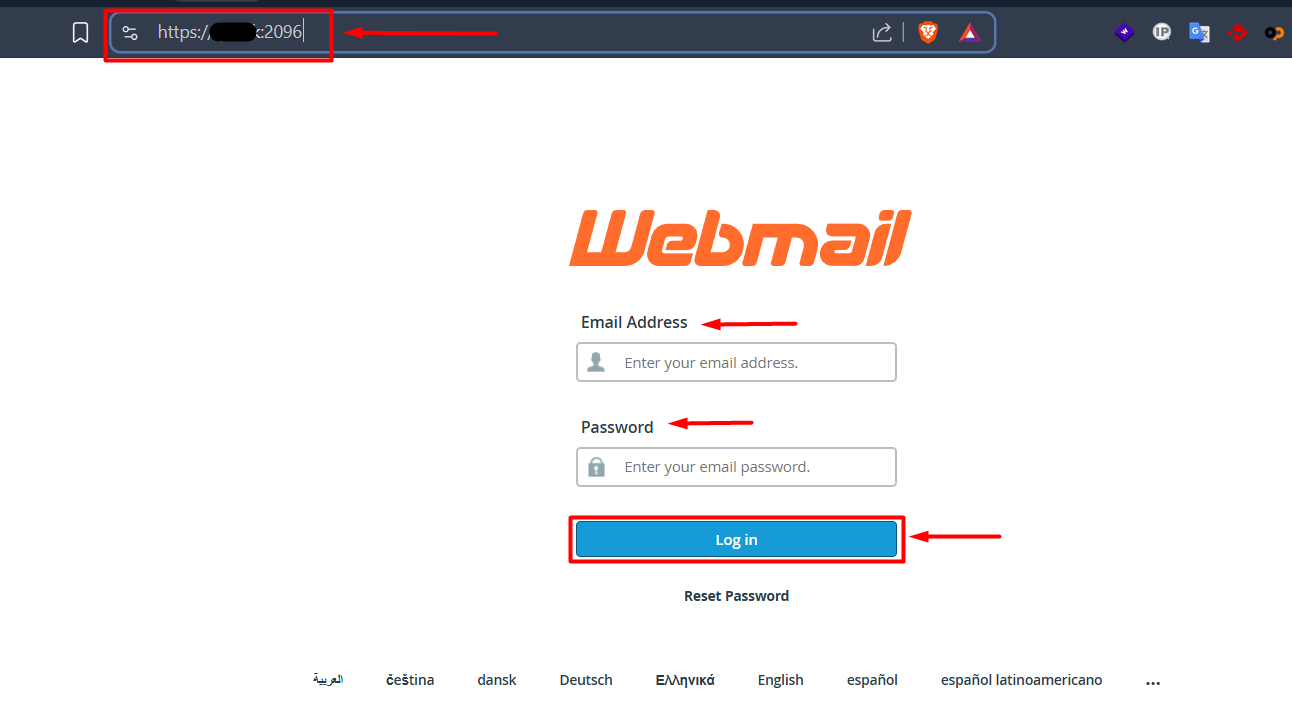
(Make sure to replace yourdomain.com with your actual live registered domain name).
Press Enter. You will instantly be redirected to the secure Webmail login interface.
Enter Your Mailbox Variables:
- Email Address: Type your full business email address (e.g.,
[email protected]). - Password: Enter the exact password you generated for this specific mailbox inside cPanel.
Click the blue "Log in" button.
The system will load the dashboard layout. Click on the Roundcube icon to open your primary messaging screen!
Method 2: Access Securely via Your cPanel Dashboard
If you are already managing your website backend assets inside your control panel, you can access your inbox without entering an email password.
- Log in to your Ceylon Servers cPanel account.
- Navigate down to the Email section cluster and click on the "Email Accounts" icon.
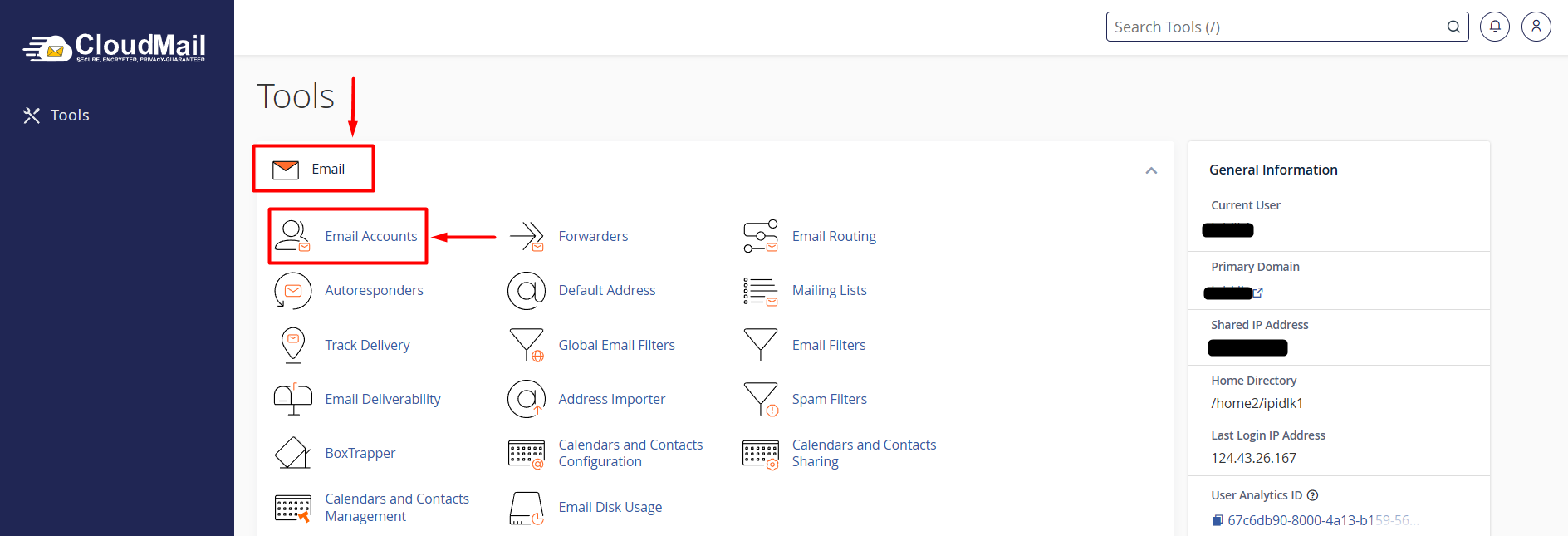
- Scroll down to find the specific business email address you wish to check from the active listing tables.
- Click on the gray "Check Email" button located on the right-hand side of that email row item.
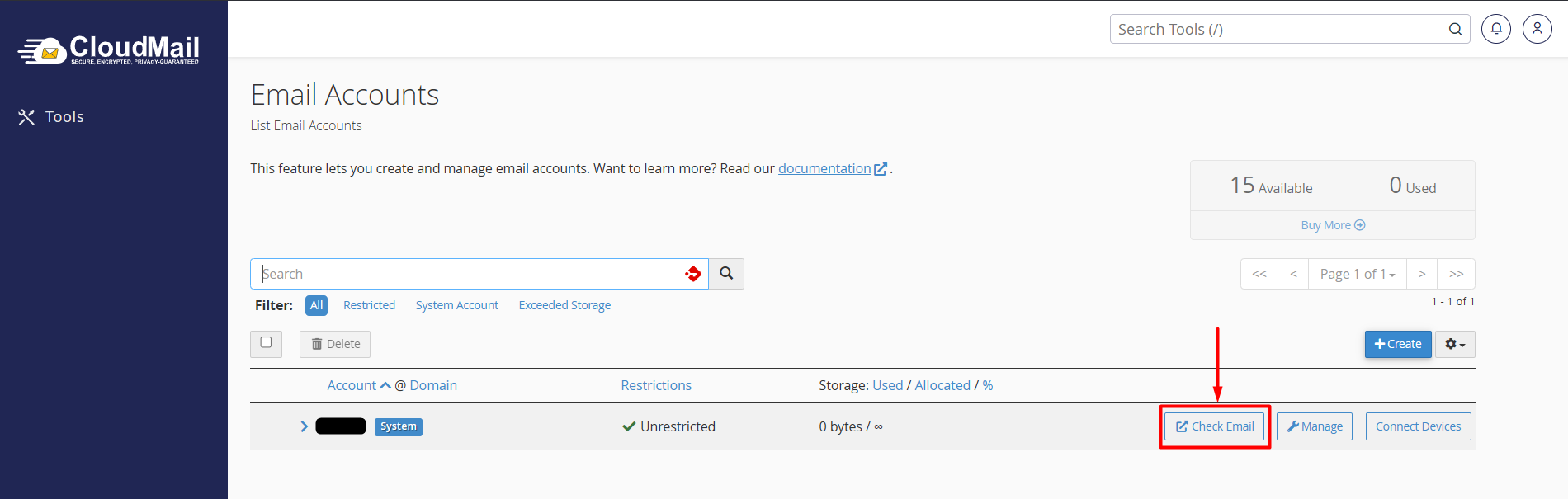
- The interface will open a secure automated loop tab session and direct you straight into your Roundcube inbox layout instantly!
Pro-Tips for Safe Webmail Usage:
- Logging Out on Public Devices: If you are checking your corporate mail from an internet cafe, hotel, or a shared laptop, always make sure to click your profile icon in the top right corner of Roundcube and select "Logout" to terminate your active secure cookie session completely.
- Bookmark for Quick Access: For daily efficiency, type
yourdomain.com/webmailin your browser once, and click the star icon in your address bar to save it as a desktop shortcut bookmark!
Facing a Login Timeout or Secure Padlock Block? If typing your webmail URL triggers a "Connection Not Private" or "SSL Missing" notification page, it indicates your domain's Free Let's Encrypt security certificate is still generating in the background loop.
As an emergency bypass, you can use your server's direct network node prefix (e.g.: https://server.ceylonservers.com:2096) to access your mail securely. If the login loop continuously rejects your credentials, please Open a Technical Support Ticket inside your client portal right away, and our systems desk will reset your parameters instantly!