
Getting started with your Web Hosting Control Panel (Login)
Welcome to CeylonServers! Once you purchase an Unlimited Hosting Plan, your control panel (cPanel) is where you manage your website files, create email addresses, and manage databases.
There are two easy ways to log into your control panel. Follow the steps below:
Method 1: Logging in via the Ceylon Servers Client Portal (Recommended)
This is the easiest method because you do not need to remember a separate cPanel password.
- Log In: Go to the Ceylon Servers Client Dashboard and log in with your registered email and password.
- Go to Services: On the top menu, click on "Services" and select "My Services".
- Select Your Plan: Find your active hosting plan (e.g.: Unlimited Hosting) and click on it.
- One-Click Login: On the left-hand sidebar under the "Actions" menu, look for "Log in to cPanel". Click this link, and you will be securely logged into your control panel automatically.
Method 2: Logging in Directly via Your Browser
If you prefer to bypass the client portal, you can log in directly using your domain name.
Open Your Browser: Type one of the following URLs into your address bar (replace yourdomain.com with your actual website name):
Enter Credentials: A login box will appear on the screen asking for a Username and Password.
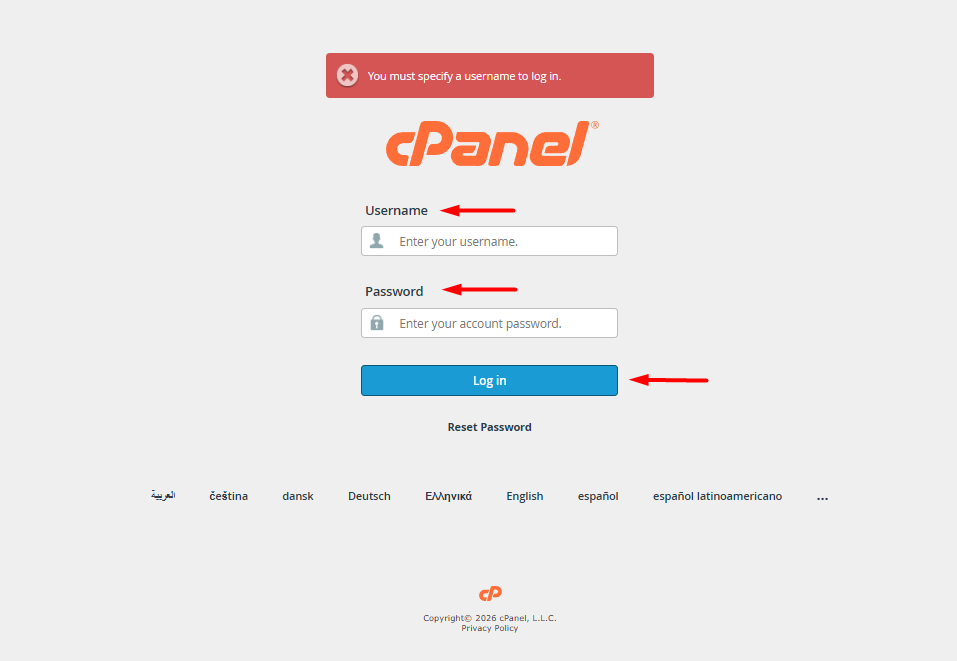
Find Your Details: Check the "Welcome Email" sent to you by CeylonServers right after your purchase. This email contains your unique cPanel Username and Password.
Click Log In: Enter those details carefully and click "Log In".
What to Do If You Can't Log In
- Wrong Password? If you are using Method 2 and it fails, you can reset your password. Go to your CeylonServers Client Portal, select your service, and click "Change Password" in the left-hand sidebar to set a new one. Or
you can reset your password easily. Click on the "Forgot Password" link on the cPanel login page, enter your cPanel Username, and follow the steps to reset your password.
.png)
- New Domain? If you just registered your domain name today, it might take a few hours to activate globally (Propagation). If the direct link (yourdomain.com/cpanel) does not open, use Method 1 instead, as it always works instantly.
Need Help? If you cannot find your login credentials or face any connection errors, please click on "Open Ticket" in the top navigation menu, and our support team will assist you immediately.