
How to prevent emails going to Spam (Setting up SPF, DKIM, and DMARC)
When you send a business email from your custom domain (e.g.: [email protected]), receiving servers like Gmail and Yahoo check your authentication profile to verify that the message is genuinely from you. If your domain lacks proper verification protocols, global mail networks will automatically flag your messages as high-risk and route them directly to the Spam or Junk folder.
To ensure 100% email deliverability right into your client’s primary Inbox, you must configure three critical DNS text entries: SPF, DKIM, and DMARC.
Follow this complete deployment guide to set them up effortlessly inside your cPanel dashboard:
Step 1: Enable SPF and DKIM Instantly via cPanel
CeylonServers builds automatic authentication helpers right into your management core dashboard.
- Log in to your cPanel account dashboard.
- Under the Email section cluster, click on the "Email Deliverability" icon.
.png)
- Locate your primary domain name in the listing layout.
- If the domain status displays a green "Valid" alert, your SPF and DKIM parameters are already running correctly!
- If it displays a red "Problems Exist" warning status, click the "Manage" button right next to the domain.
.png)
- Scroll to the bottom of the management sheet and click the blue "Install The Suggested Record" button for both SPF and DKIM. cPanel will automatically publish these configurations to your hosting DNS zone manager list instantly.
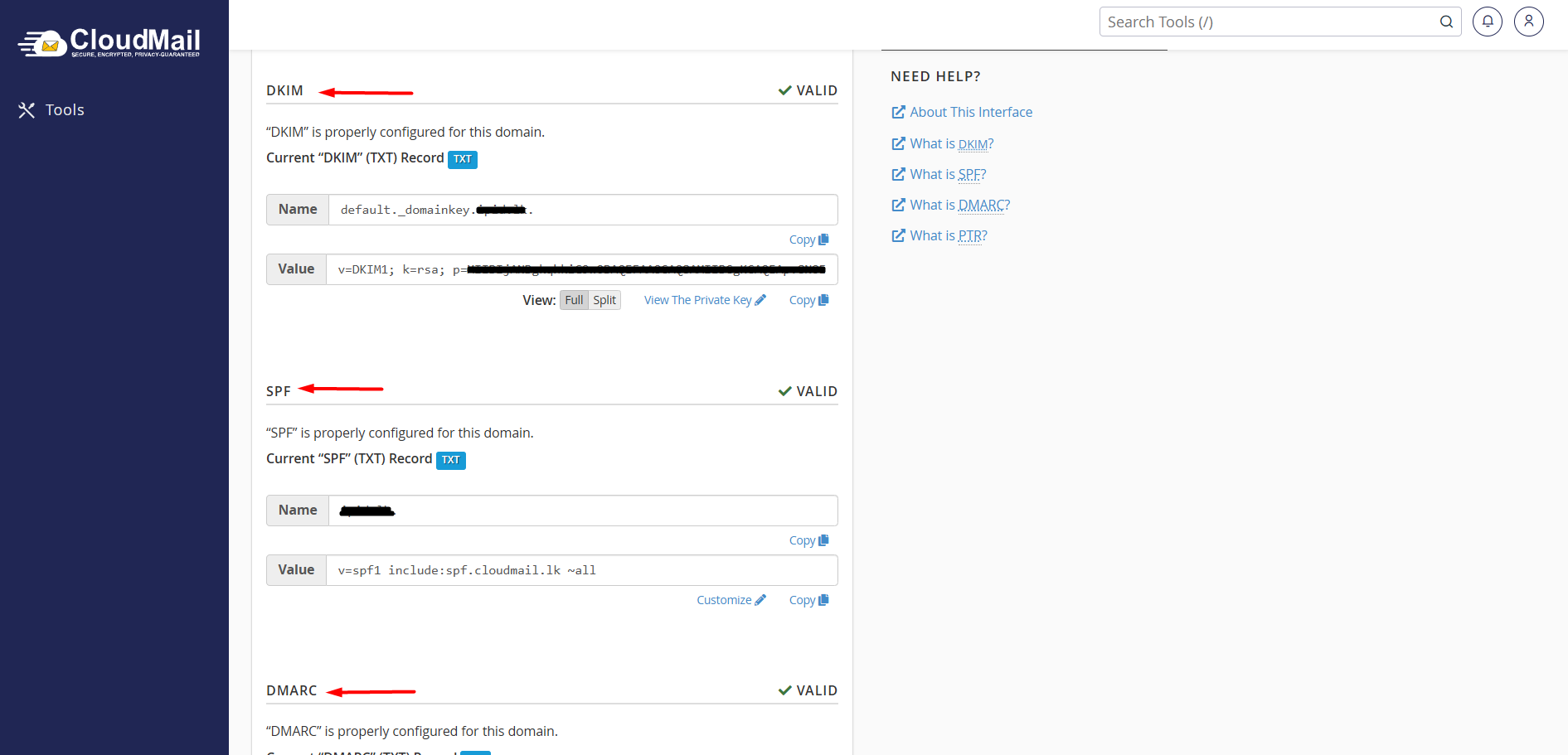
Understanding What You Just Fixed:
1. What is an SPF Record?
An SPF (Sender Policy Framework) record is a single-line DNS TXT record that lists all authorized IP addresses allowed to send emails on behalf of your domain name.
Example of a standard CeylonServers cPanel SPF entry:
Plaintext
v=spf1 +mx +a +ip4:192.168.1.100 ~all
(This explicitly tells global target mail networks that only our server node IP is trusted to deliver your mail).
2. What is a DKIM Record?
DKIM (DomainKeys Identified Mail) adds a cryptographic digital signature stamp lock to the hidden header lines of every outgoing email you dispatch. Receiving servers use your domain's public key inside your DNS records to verify that the email was not intercepted, altered, or forged by a malicious third party while in transit.
Step 2: Test and Verify Your Inbox Reputation
- Once all records are updated, give them 10 to 15 Mintes to sync globally.
- The Ultimate Test Tool: Go to a free testing portal like Mail-Tester, copy the unique temporary email address it provides, and send a standard text test message to it from your business account.
- This will analyze your metadata signatures and score your deliverability rating out of 10!
Facing Continuous Spam Delivery Flags? If your SPF, DKIM, and DMARC records are completely valid but your mail is still routing to spam, your server IP range might have been blacklisted by global monitoring entities due to historical mass marketing campaigns or a compromised software script on your account.
Please Open a Critical Support Ticket right away inside your CeylonServers client room panel, and our postmaster security desk will track your outbound mail logs to run a manual mail-relay routing check for you!